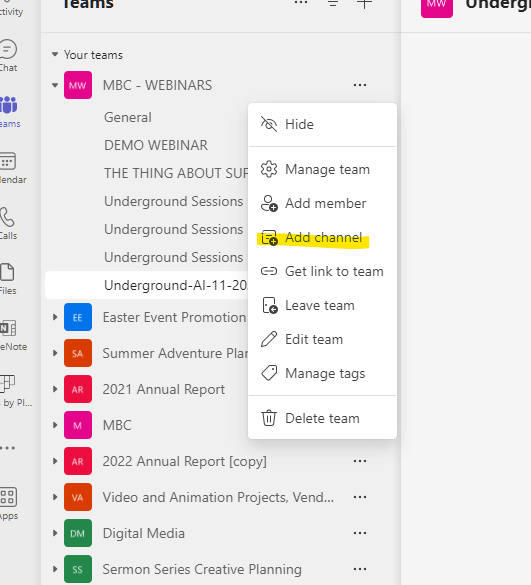
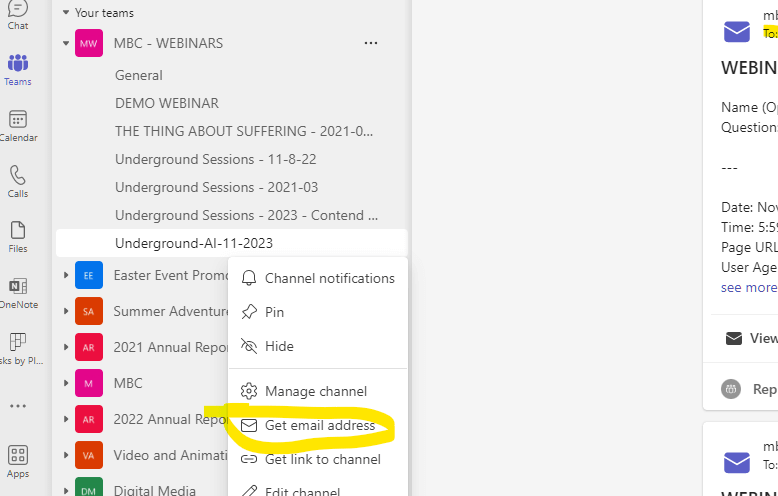
edit link:
https://millingtonbaptist.org/wp-admin/post.php?post=37596&action=elementor
To exclude the header/navbar from a page:
- access the header edit link above
- add a display condition
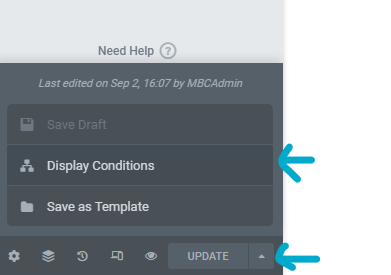
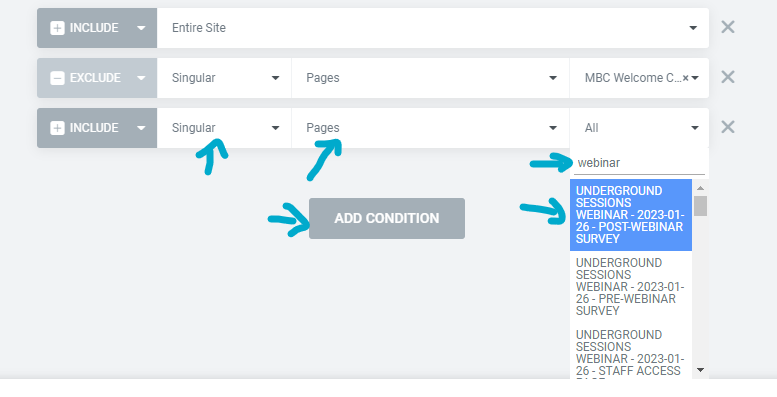
Dont forget to “update/save” your changes



edit link:
https://millingtonbaptist.org/wp-admin/post.php?post=37596&action=elementor
To exclude the header/navbar from a page:
Dont forget to “update/save” your changes
Using MetaTogger Software:
| Filename | 00 Title – Speaker – date | Use two-digit numerical date segments |
| Artist | Speaker Name | |
| Title | Episode Title | |
| Album | Underground Sessions | |
| Track number | Episode number within series/season | use two-digit numerical |
| Date | Year | user four-digit numerical |
| Album Artist | Millington Baptist Church | |
| Comment | use Blurb from WP | |
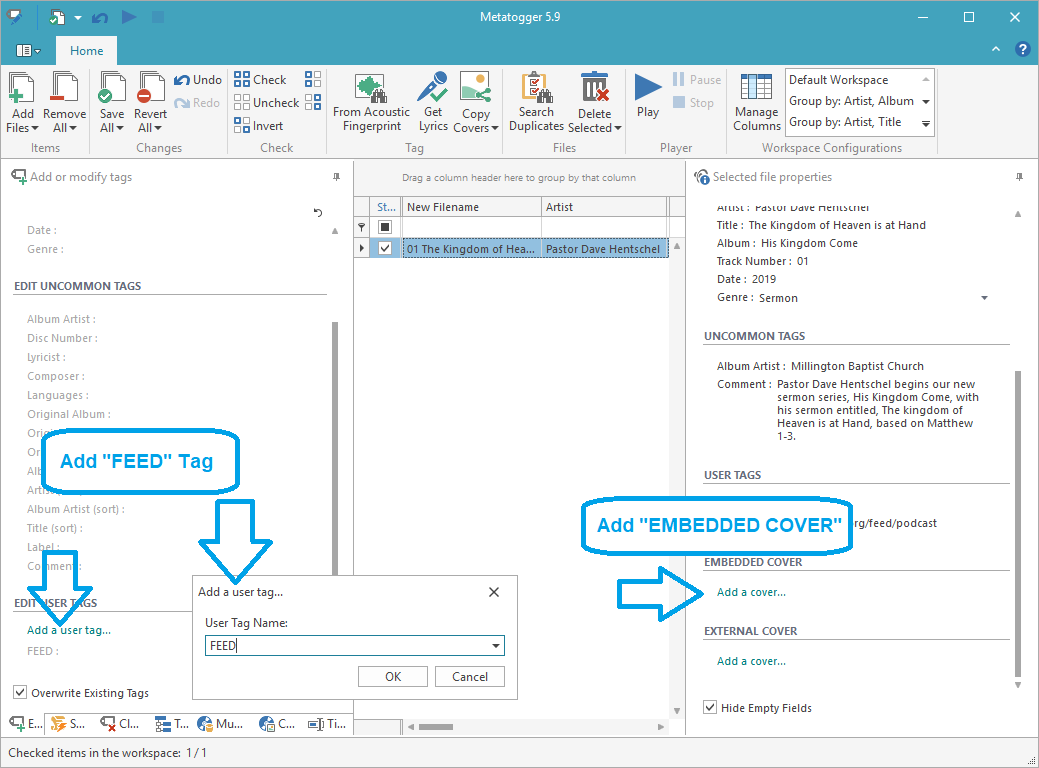
| FEED | http://millingtonbaptist.org/feed/podcast/underground-sessions-podcast | or current podcast feed |
| EMBEDDED COVER |  |
ADDING “FEED” tags and “EMBEDDED COVER”
(Using “MetaTogger” 5.9)
Note* “Rush Blog” naming/branding subject to change
The main Blog page can be accessed from the main site menu: ministries -> teens – > rush blog
To add a new blog post, from the dashboard:
Blog Entries -> Add New
Title, Body, and Featured Image are all recommended.
Blog entries publish/unpublish just like other WordPress Posts (just with a separate content type)
—Note* the following info is mainly for Marc—
Content Layout Templates are found in:
Templates and Theme Styling -> All AE Templates:
[BLOG] Main blog entries list layout (This is the main blog at ministries->teens->rush blog)
[BLOG] BLOG ENTRY LAYOUT (This is the layout for the blog if you’re viewing the actual blog entry on a single page)
RSS FEED: https://millingtonbaptist.org/blog-entry/feed/
For AE-Post Blocks widgets, to force overflow scrolling in Y direction, add the following CSS code to the “Custom CSS” area of the “advanced” tab.
/* AE Post Block Widget Overflow Scrolls at 100% viewport height */
.ae-post-list-wrapper{
max-height:100vh;
overflow:auto;
}
PAGES:
TEMPLATES:
Publish Section:
Set video Published date to Sermon recorded date!
Sermon Video Categories:
Vimeo Video Categories:
PODCAST EPISODE DETAILS (accordion section in “edit video”)
Using MetaTogger Software:
| Filename | 00 Title – Speaker – date | Use two-digit numerical date segments |
| Artist | Speaker Name | |
| Title | Sermon Title | |
| Album | Sermon Series | |
| Track number | Sermon number within series | use two-digit numerical |
| Date | Year | user four-digit numerical |
| Album Artist | Millington Baptist Church | |
| Comment | use Blurb from WP | |
| FEED | http://millingtonbaptist.org/feed/podcast | or current podcast feed |
| EMBEDDED COVER |  |
MBC Podcast Logo jpg |
ADDING “FEED” tags and “EMBEDDED COVER”
(Using “MetaTogger” 5.9)
Using MetaTogger Software:
| Filename | 00 Title – Speaker – date | Use two-digit numerical date segments |
| Artist | Speaker Name | |
| Title | Sermon Title | |
| Album | Sermon Series | |
| Track number | Sermon number within series | use two-digit numerical |
| Date | Year | user four-digit numerical |
| Album Artist | Millington Baptist Church | |
| Comment | use Blurb from WP | |
| FEED | https://millingtonbaptist.org/feed/podcast | or current podcast feed |
| EMBEDDED COVER |  |
MBC Podcast Logo jpg |
ADDING “FEED” tags and “EMBEDDED COVER”
(Using “MetaTogger” 5.9)
After several rounds of trial and error the following conclusion was reached by MDV:
Using Audacity to convert MP4 to MP3
The above settings produced a smaller audio file with minimum loss of audio quality.
Used Audacity for Windows to convert single AND batch-convert videos downloaded from Vimeo to MP3 Format.
NOTE* Audacity’s single file conversion options found under file->export.
Batch export found under Tools->macros